Using Touch ID or Face ID to Automatically Log in eufySecurity App
Modified on: Wed, 10 Dec, 2025 at 11:19 AM
Compatible with:
5-Piece Home Alarm Kit, Motion Sensor, Entry Sensor, Keypad, eufyCam 2 Pro, eufyCam 2C Pro, eufyCam 2, eufyCam 2C, eufyCam, eufyCam Solar Panel, SoloCam E40, SoloCam L40, SoloCam S230, Floodlight Cam 1080p, Floodlight Cam E 2K, Floodlight Cam 2 Pro, Smart Lock E130, Smart Lock C100, Smart Lock S230, Video Doorbell 2K (Wired), Video Doorbell 2K (Battery-Powered), eufy Security Video Doorbell 1080p (Battery-Powered), Indoor Cam 2K (Solo IndoorCam C24), Indoor Cam 2K Pan & Tilt (Solo IndoorCam P24), Outdoor Cam Pro (Solo OutdoorCam C24), Indoor Cam Mini 2K, Video Doorbell Dual 2K (Battery-Powered), Floodlight Cam E340, Video Doorbell E340
You can find that there are easy ways to log in Eufy App.
If your Apple device supports Touch ID, you can often use your fingerprint instead of your passcode. If your Apple device supports Face ID, you can use face recognition instead of your passcode. With a compatible Android device, you can use Touch ID to verify your fingerprint and log in quickly.
Compatible Devices with Different Authentication Options
Apple Devices with iOS (11+) Version
- Models with Touch ID: iPhone SE (2nd generation), iPhone 8, iPhone Plus, etc.
- Models with Face ID: iPhone 12 mini, iPhone 12, iPhone 11, etc.
Android Devices with Android (5.0+) Version
You can unlock your Eufy App on Android smartphones using your fingerprint if your smartphones can support fingerprint authentication.
Setting Up Touch ID for Eufy App
The first step is to set the fingerprint on the phone, then enable the fingerprint authorization in Eufy App.
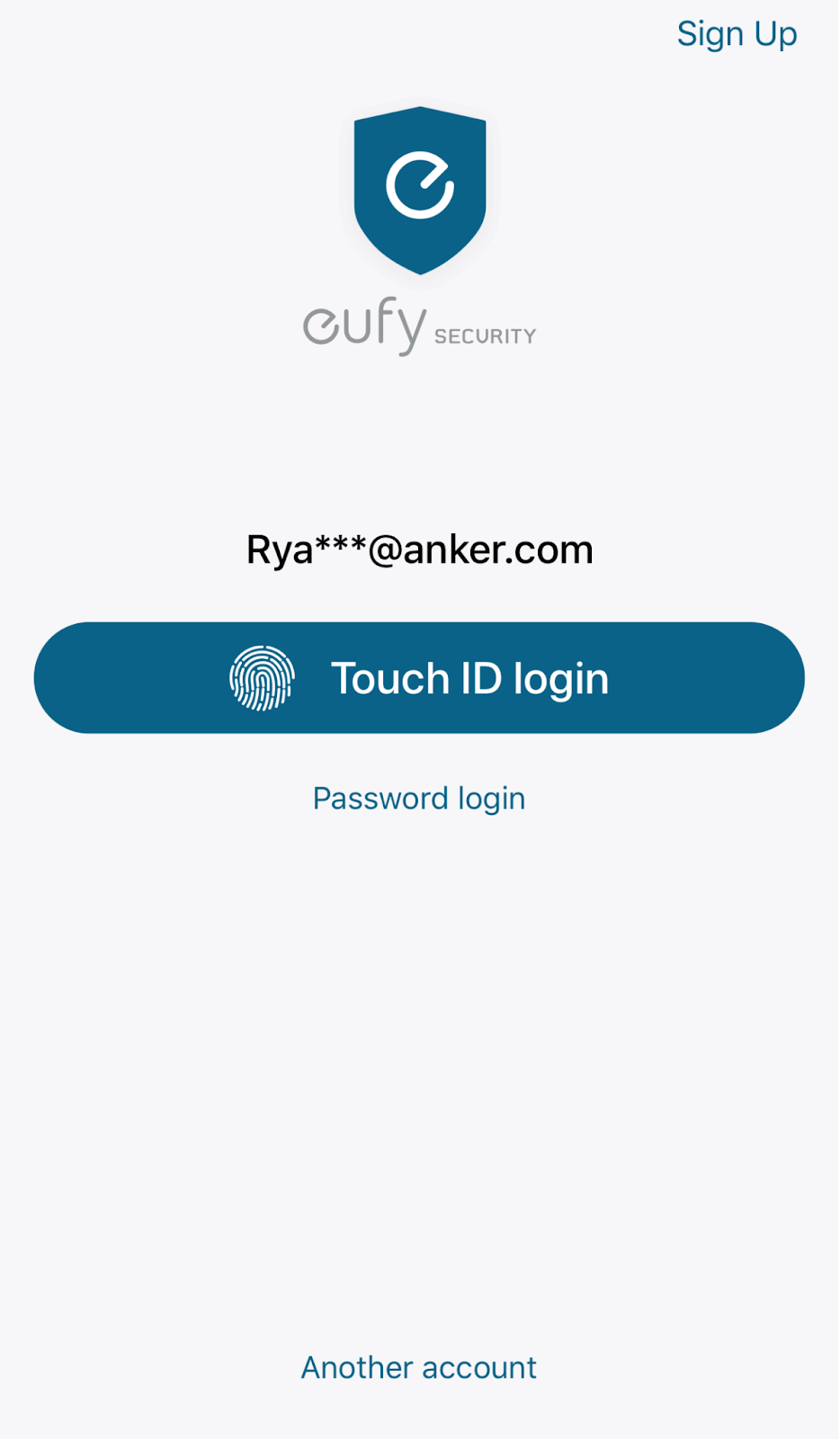

Setting Up Your Fingerprint on the Phone
- Apple Devices: iPhone user guide - Set up Touch ID on iPhone.
- Android devices: Tap the Settings icon on your Android device and tap lock screen and security to add a new fingerprint.
Turn Touch ID on and off for the Eufy App
1. Open the Eufy App.
2. Slide the three-lined side menu and enter your avatar and email address.
3. Tap Fingerprint in account settings.
4. Enable the fingerprint on your phone.
5. Please verify your fingerprint.
6. Open succeeded. To turn it off, simply toggle the fingerprint to the left(off).
Setting Up Face ID for Eufy App
The first step is to set the face ID on the phone, then enable the Face authorization in Eufy App.


Setting Up Your Face ID on the iPhone
iPhone user guide: Set up Face ID on iPhone.
Turn Touch ID on and off for the Eufy App
1. Open the Eufy App.
2. Slide the three-lined side menu and enter your avatar and email address.
3. Tap Face Login in account settings.
4. Enable the Face Login on your phone.
5. Please verify your face ID.
6. Open succeeded. To turn it off, simply toggle the Face Login to the left(off)
Was this article helpful?
That’s Great!
Thank you for your feedback
Sorry! We couldn't be helpful
Thank you for your feedback
Feedback sent
We appreciate your effort and will try to fix the article